
Tutorials
How to Transfer iPhone Photos to Windows and Keep the Date Taken
Copy an original iPhone photo with File Sync, compare Date taken and dimensions in Windows, and diagnose a missing capture date before moving a whole album.
To keep the date an iPhone photo was taken, transfer the original image and compare its capture date on both devices. In Windows File Explorer, check Date taken. Date created can show when the copy arrived on your PC, even if the photo itself still carries its original capture date. Microsoft documents how Windows reads the capture date from a photo’s EXIF metadata.
Start with one camera photo
Pick a photo you took on an earlier day. Open it in iPhone Photos and swipe up or tap the information button. Write down the capture date, time and pixel dimensions. Use a camera original for this check. A screenshot or an image downloaded from a messaging app may never have contained camera metadata.
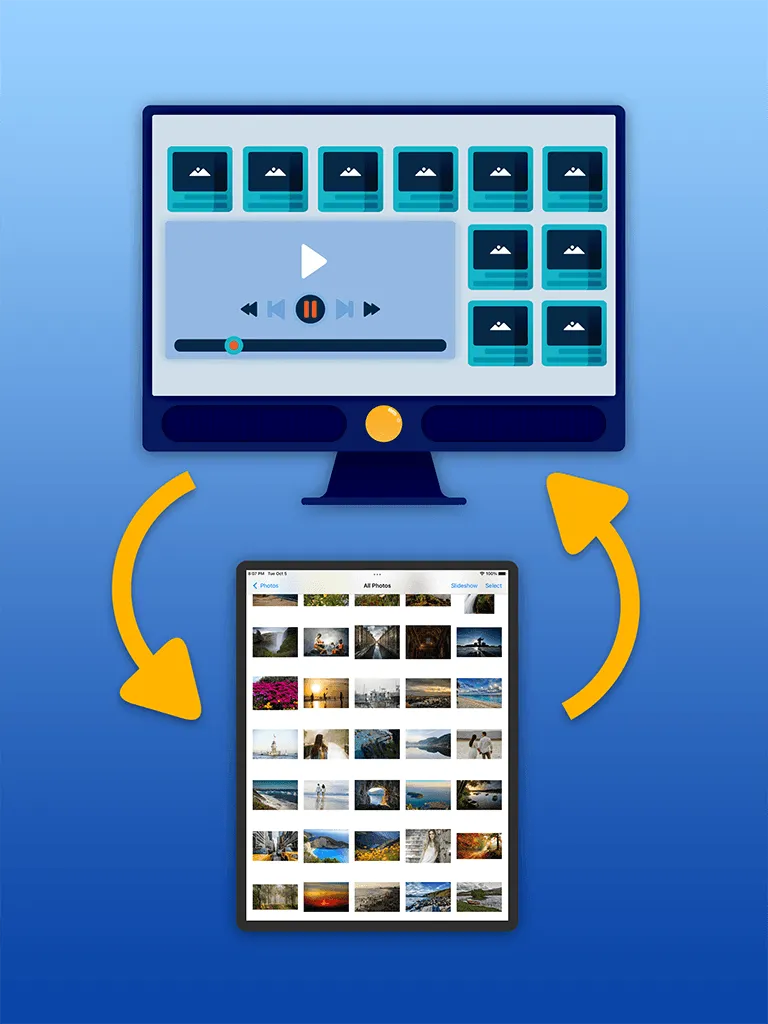
- Connect the iPhone and Windows PC to the same trusted Wi-Fi network. Open File Sync on the phone and start its local transfer. In a browser on the PC, open the address shown by the app.
- Select the sample photo and save the original format at full resolution when those choices are available. For this first check, skip resizing and HEIC-to-JPEG conversion so you can isolate what the transfer preserves.
- Find the downloaded image in File Explorer. If it arrived inside a ZIP file, extract it first. Right-click the image, choose Properties, then Details. Compare Date taken and the image dimensions with your iPhone.
Read the result before copying the album
| What Windows shows | What to do |
|---|---|
| Date taken and dimensions match the iPhone | Repeat with a few photos from different years. In File Explorer’s Details view, add the Date taken column to sort by capture date. |
| Date created is today, but Date taken matches | The copy has a new file-system date. Use Date taken when arranging the photos chronologically. |
| Date taken is blank | Check the same field on a known camera JPEG. If only the HEIC file is blank, check whether Windows can read that format before concluding the metadata was stripped. |
| The original matches, but a converted copy differs | Keep the original as your archive. Check the converted file separately before relying on it for dates or dimensions. |
A matching date and resolution answers two specific questions. For Live Photos, edited versions, or videos, also check that the parts you want arrived and play correctly. Keep the originals until you have checked the destination and made a separate backup.
About the author
The Sixbytes Team writes from product documentation and current platform guidance. Product-specific guides disclose the Sixbytes relationship and link to official sources when behavior can change by operating system, app version, or storefront.
About Sixbytes