Security
Can You Lock an Entire Notes Folder on iPhone?
Compare Apple Notes’ individual note locks with folder locking in Safety Note+. Try a sample folder and check what remains visible when it is locked.
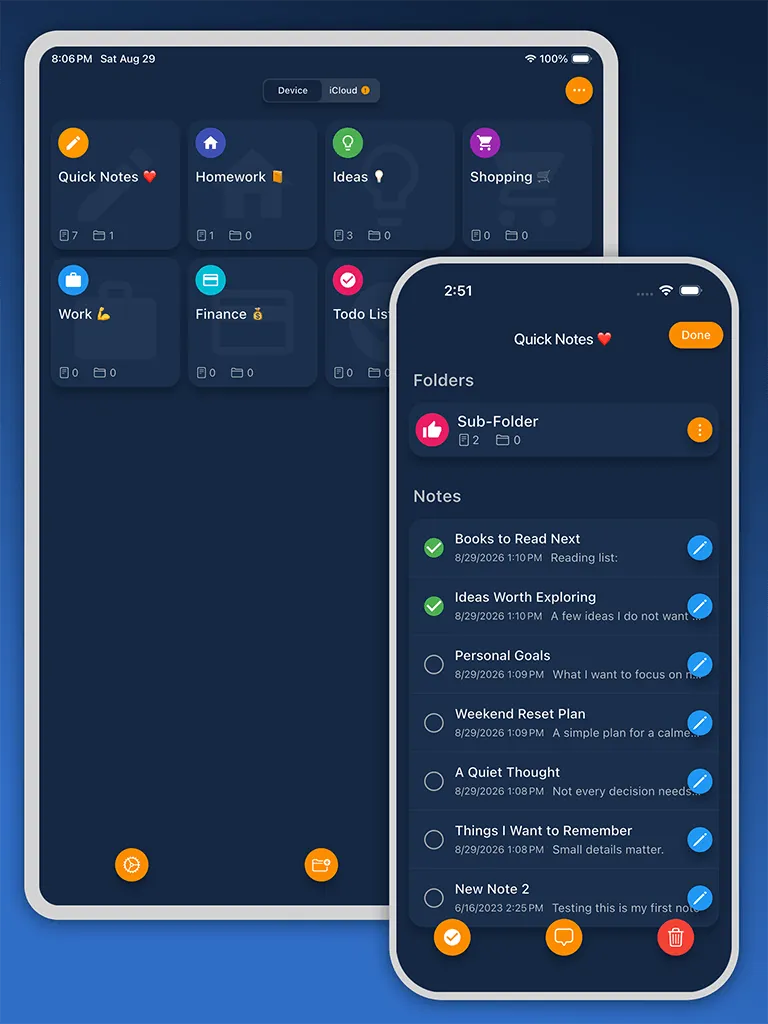
Apple Notes lets you lock individual eligible notes. Putting those notes in one folder does not give the folder its own lock. If you want one more passcode prompt around a collection, Safety Note+ supports locking selected folders inside its own library. That lock applies to the folder in Safety Note+. It cannot add a lock to a folder in Apple Notes.
Choose what you want to protect
For a single journal entry that already lives in Apple Notes, open the note, tap the More button, and choose Lock. Close the lock when you finish reading. Apple explains which notes are eligible and how to change the unlock method in its guide to locking notes on iPhone.
For a collection, consider what should happen after someone opens the notes app. Suppose you keep shopping lists and private journal entries in the same library. You want to open the shopping list freely, but require a second deliberate unlock before anyone can read the journal folder. This is where a selected-folder lock is useful.
Try the folder lock with two sample notes
- Open Safety Note+ for iPhone and create a folder called Practice. Add a note called Sample entry inside it. Leave a second ordinary note outside the folder.
- Open the settings for the Practice folder and enable its passcode lock. Use a neutral folder name if the name itself would reveal something private.
- Close and reopen the app, unlock the main library, and open the ordinary note. Then open Practice. Check that the folder asks you to unlock it before you can read Sample entry.
- Cancel the prompt. Check what the library still shows, including the folder name and any previews. Only move private writing once the behavior matches what you need.
What happens to the original?
Copying text from Apple Notes creates another copy. Its original note, shared copies, and previous exports keep their existing access settings. Before reorganizing important notes, reopen the copy in Safety Note+, confirm the text is complete, and review your backup and recovery options. A successful unlock on this iPhone tells you about access on this device. Restoring notes on a replacement phone is a separate check.
About the author
The Sixbytes Team writes from product documentation and current platform guidance. Product-specific guides disclose the Sixbytes relationship and link to official sources when behavior can change by operating system, app version, or storefront.
About Sixbytes